How to Add Email Signature in Gmail
Complete beginner-friendly guide to implementing your professional email signature in Gmail. Follow these simple steps and you'll have it set up in minutes!
Progress
0 of 6 completedStep 1: Open Gmail Settings
Navigate to your Gmail settings to access signature options
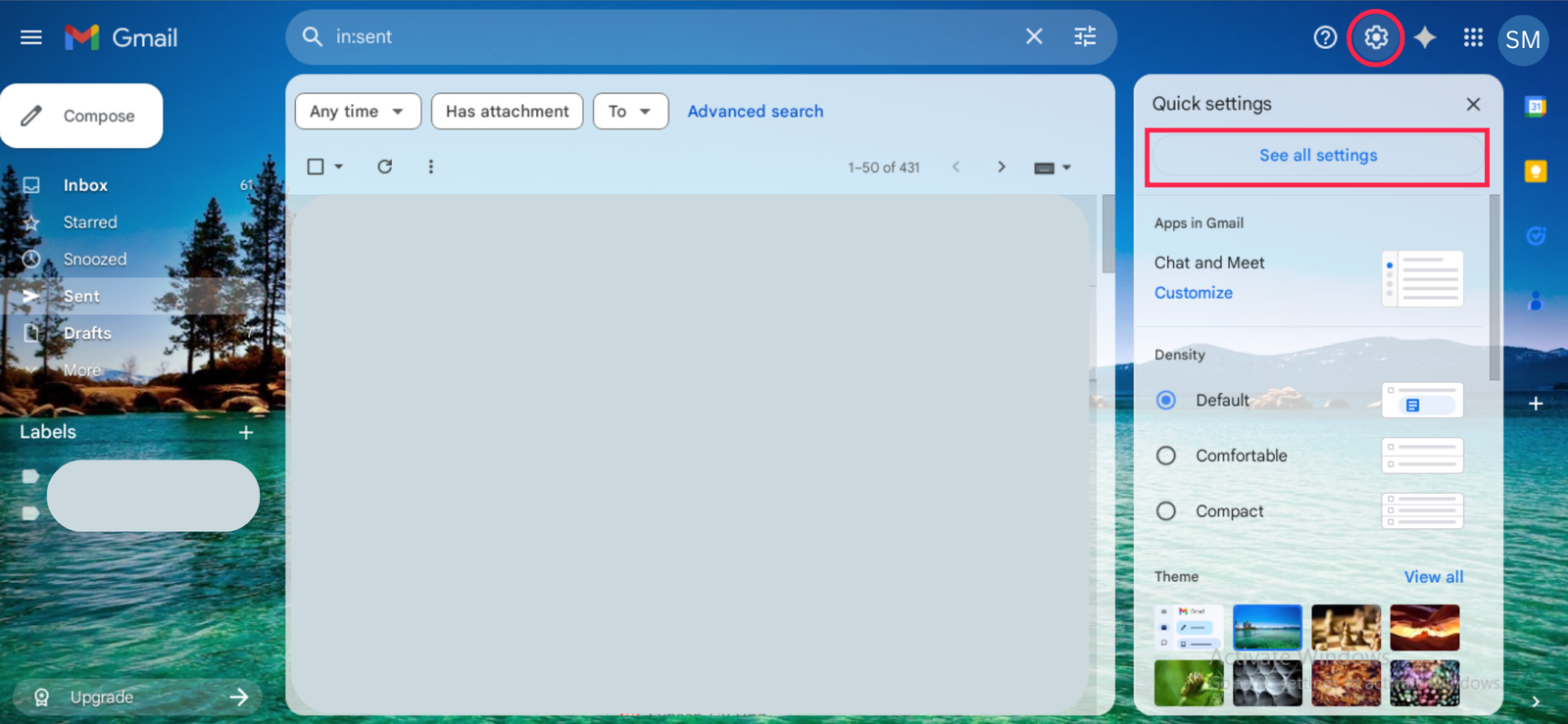
What to do:
- 1Open Gmail in your web browser
- 2Click the gear icon (⚙️) in the top right corner
- 3Select 'Settings' from the dropdown menu
Pro Tip
Make sure you're signed into the correct Gmail account if you have multiple accounts.
Common Issues & Solutions
❓ Signature doesn't appear in new emails
Make sure you've selected the correct default signature in step 5. Also check that you've saved your changes.
❓ Signature looks different than preview
Email clients may render HTML differently. Test by sending an email to yourself and checking how it appears on different devices.
❓ Can't find the HTML button
Make sure you're using the rich text editor. If you're in plain text mode, switch to rich text first, then look for the HTML insertion option.
❓ Signature appears twice
This can happen if you have both a default signature and manual insertion enabled. Check your signature settings and choose one method.